Installation
Download Logbuch, upload it in Ghost Admin and activate it. Update it later without losing your settings.
If you're not on Ghost yet, Where to run Ghost compares your options, or I can set it up for you. Logbuch needs Ghost 6 or newer and a plan that lets you upload your own theme. On Ghost(Pro) that's Publisher and up.
Logbuch comes as one file, logbuch.zip. Upload it in Ghost Admin as it is. Don't unpack it and don't rename it, because Ghost names the theme after the file. If the file is called logbuch.zip, an update later replaces the theme instead of installing a second copy next to it.
Download
You buy Logbuch through Polar, which handles the payment for me. Your files are kept in Polar's customer portal:
- Open Polar's customer portal for niched.
- Enter the e-mail address you bought with. Polar sends you a link to sign in.
- Under your purchase, download
logbuch.zip. The demo files of each preset are there too (see Demo content).
New versions appear in the same place. You don't need an account at Polar beyond your e-mail address.
Install the theme
- Open Ghost Admin (your site's address followed by
/ghost) and sign in as the owner or an administrator. - Click Settings in the sidebar on the left.
- Under Site, find Theme and click Change theme.
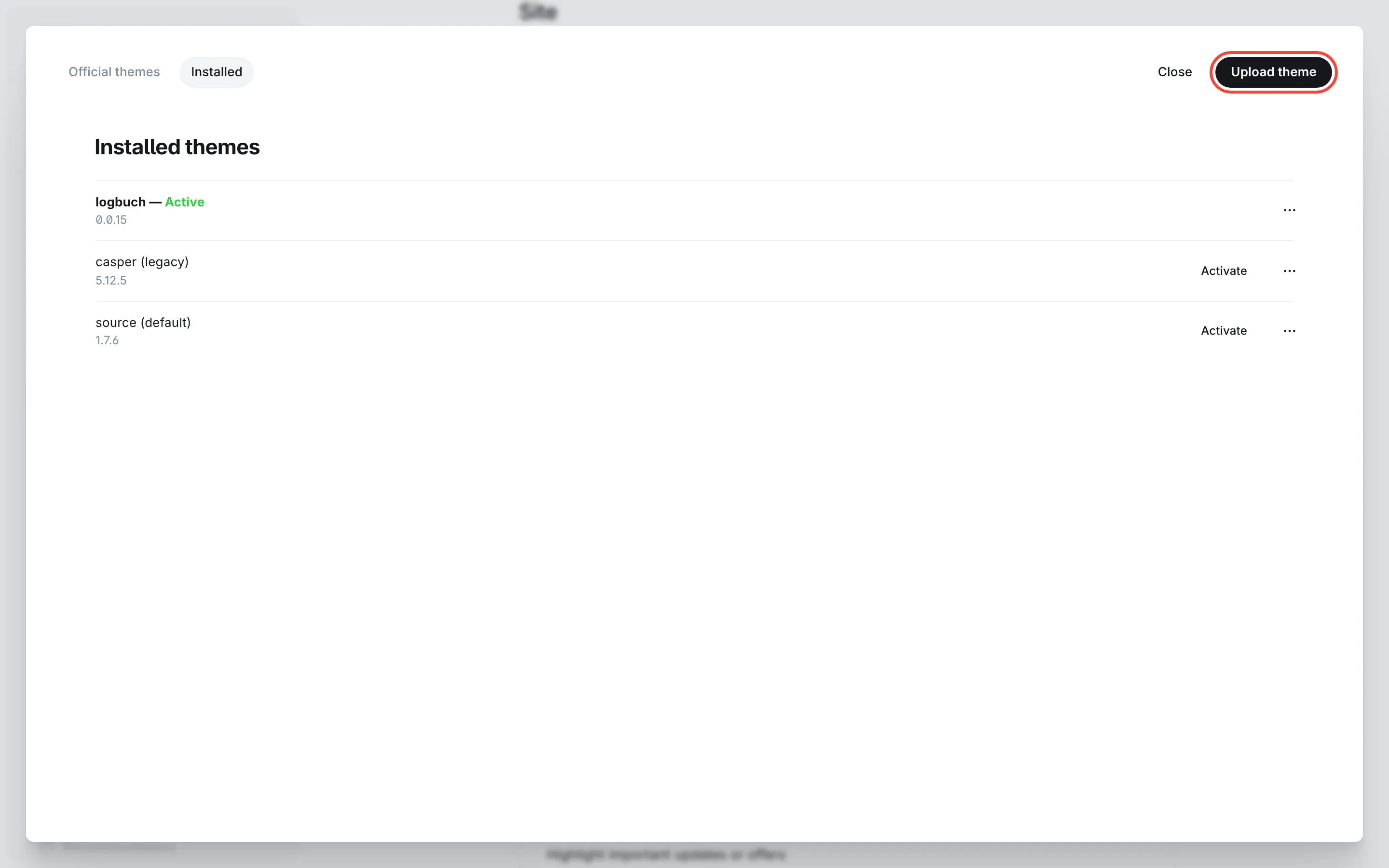
- Click Upload theme at the top right, then choose
logbuch.zip. - When Ghost has checked the file, click Activate theme.
Your site now uses Logbuch with the Dev blog preset: the Seekarte colours and the Tutorials first home page. Open it in a new tab. With no posts yet the home page is mostly empty, because every list fills from your entries. Write a first entry or import the demo content to see it filled.
Update to a new version
- Download the new
logbuch.zip. - Go to Settings → Site → Theme → Change theme → Upload theme and choose the file.
- Ghost tells you that a theme with this name exists. Click Overwrite.
You keep your settings. Ghost stores them under the theme's name, so the preset, the home page layout, your colours and your fonts survive the upload. A theme update never touches posts or pages.
There's one exception. If a release removes or renames a choice in a dropdown setting, Ghost sets that setting back to its default and you'll have to choose again. The changelog says when that happens.
If you changed theme files
An update replaces every file of the theme. If you edited templates or CSS yourself (see Customising), keep your own copy and apply your changes to the new version before you upload it. Changes made in Ghost Admin, such as Code injection, aren't part of the theme and stay as they are.