Demo content
Import the demo of your preset to see every post type filled in, then replace it with your own entries.
Each preset has a demo: an invented publication with posts, releases, incidents, TIL notes, letters, authors and comments. Import one to see every part of Logbuch filled in, then rewrite the posts as your own or delete them.
Import the demo into a new, empty site. The first step deletes all posts and tags, so never run it on a site with content you want to keep.
The three demos
| Preset | Publication | What's in it |
|---|---|---|
| Dev blog | ~/mira-okafor | The blog of Mira Okafor, a backend developer in Weststadt: a tutorial series in six chapters, TIL notes and posts in between, and the releases and incidents of her link shortener stummel. |
| Changelog | Pegel | The release notes and incident reports of Pegel, a small self-hosted uptime monitor that two people maintain in their evenings. |
| Homelab | The Loft Rack | The journal of Tomasz Wieland, three mini PCs and a NAS in a loft in Ostheim: a series in five chapters, short entries about what he set up, incidents and TIL notes. |
Every demo also has two letters, two posts with the Video Header template, a style guide post with every card, and the pages About, Authors, Tags, Sign up, Sign in, Account and Pricing.
The files
Every demo comes as two files, named after the preset:
| Preset | Images | Content |
|---|---|---|
| Dev blog | logbuch-dev-blog-demo-uploads.zip | logbuch-dev-blog-demo-content.json |
| Changelog | logbuch-changelog-demo-uploads.zip | logbuch-changelog-demo-content.json |
| Homelab | logbuch-homelab-demo-uploads.zip | logbuch-homelab-demo-content.json |
You find them next to logbuch.zip in Polar's customer portal (see Download).
You need both files of one preset. Import them one after the other, images first, because Ghost only creates the smaller image sizes when the images are imported on their own.
Import a demo
- Delete Ghost's sample content. A new Ghost site comes with a sample post and pages, and one of them has the URL
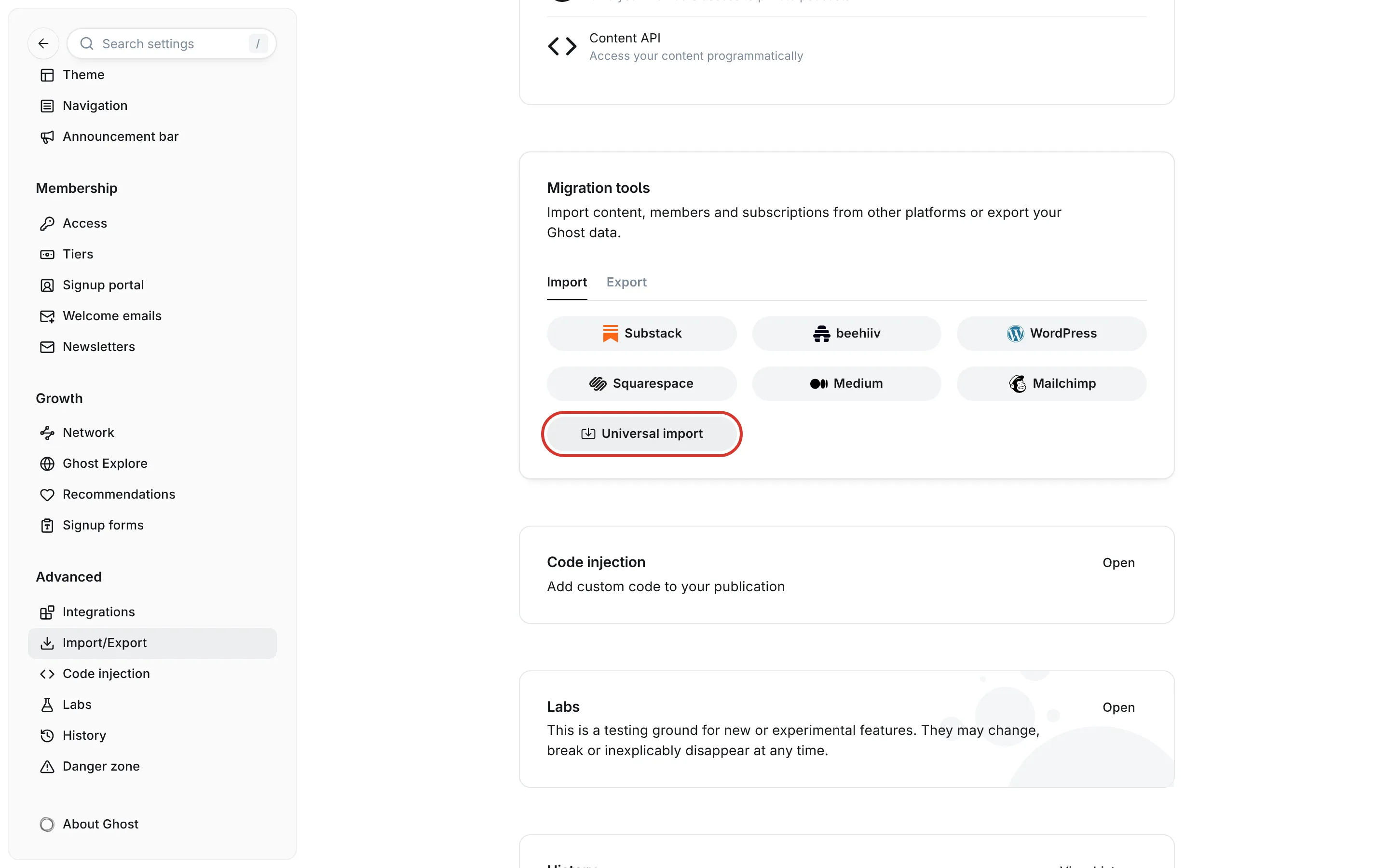
about, which the demo also uses. Go to Settings → Advanced → Danger zone, click Delete all content and confirm with Delete. This removes all posts, pages and tags. - Import the images. Go to Settings → Advanced → Migration tools, open the Import tab and click Universal import. Choose the file ending in
-demo-uploads.zipand wait until Ghost reports that the import is done. - Import the content. Click Universal import again and choose the file ending in
-demo-content.json. - Set the newsletter design. The demo doesn't include a newsletter, so yours stays as it is. Set its design as described below.
The import adds the posts, pages, tags, authors, the navigation and the theme settings of the demo, including its preset. Open your site: it now looks like the demo of that preset.
Set the newsletter design
Ghost builds the newsletter e-mails itself, and a theme can't change them. These values make the e-mail match Logbuch as closely as Ghost allows. Go to Settings → Newsletters, click Edit next to your newsletter, and set them on two tabs.
On the Content tab:
| Setting | Value |
|---|---|
| Header image | none |
| Publication title | on |
| Feature image | off |
| Add a link to your comments | on (only shown when comments are on) |
| Share your latest posts | on |
On the Design tab:
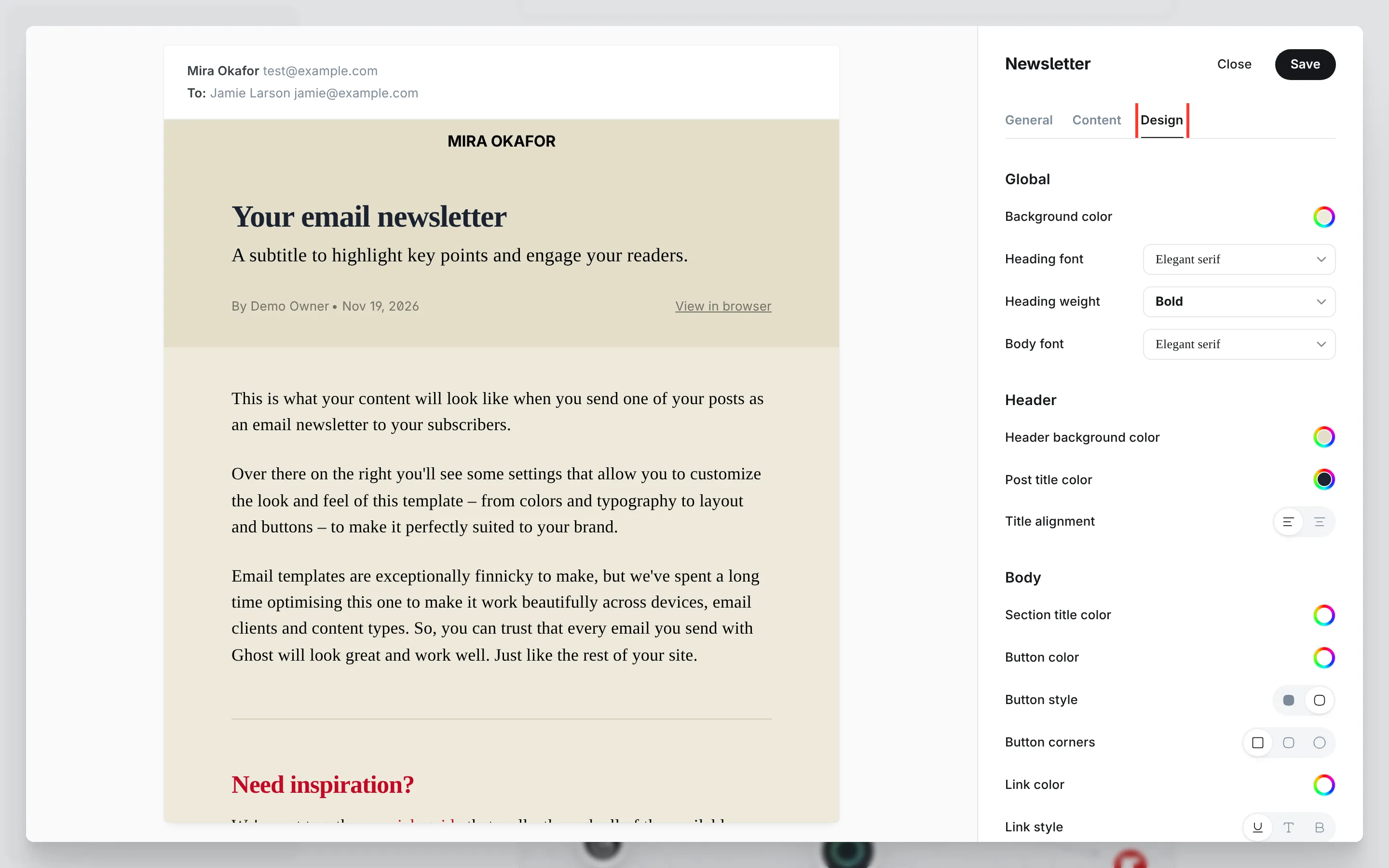
| Setting | Value |
|---|---|
| Background color | the ground of your preset, from the table below |
| Heading font | Elegant serif |
| Body font | Elegant serif |
| Post title color | the text colour of your preset, from the table below |
| Title alignment | left |
| Button corners | the square one, the first of the three |
| Preset | Background color | Post title color | Header background | Divider |
|---|---|---|---|---|
| Dev blog | #EDE9D9 | #1B2230 | #E3DECA | #CFC8B2 |
| Changelog | #E4E4E0 | #202124 | #D9D9D4 | #C6C6C0 |
| Homelab | #EEE2D8 | #2A1E1A | #E4D6CA | #D3C2B4 |
Newer versions of Ghost have more fields for the e-mail's look. Where yours has them, set these as well:
| What it sets | Value |
|---|---|
| Header background | the header background of your preset, from the table above |
| Weight of the post title | bold |
| Button style | outlined |
| Button colour | accent |
| Link style | underlined |
| Link colour | accent |
| Image corners | square |
| Colour of section titles | accent |
| Divider colour | the divider of your preset, from the table above |
| Publication icon | on |
| Newsletter name in the header | off |
| Post title and excerpt | on |
| Subscription details | off |
| Share button | off |
| Ghost badge | on |
PLACEHOLDER: Ghost Admin's labels and tabs for the fields in this last table, confirmed by a niched docs walk
Click Save.
Ghost offers a serif or a sans-serif face for e-mails, so the mono font of your site can't be used there. The button is outlined because Logbuch never sets text on the accent colour.
What you'll notice afterwards
- The demo's posts keep the dates they were written for, most of them in 2026. One post of the Dev blog demo is from 2023, so you can see the note on old posts on it.
- Every imported post has an extra internal tag named
#Importwith a date and time. Ghost adds it to everything it imports. It's harmless and invisible to readers, and it doesn't change a post's type. Delete it under Tags → Internal tags if it bothers you. - The demo's authors are imported as staff users who can't sign in. Ghost may send an e-mail to their invented addresses, which nobody receives. Assign the posts to yourself and delete those users under Settings → General settings → Staff when you start writing.
- The demo's comments aren't part of the import, because Ghost can't import comments. The demo sites show them so you can see the comments under a post.
- The demo replaced your site's title, description, accent colour and navigation. Change them back under Settings → General settings and Settings → Site. The wordmark in the header is made from the site title, so it changes with it.
Make it your own
Change the site title first, so the wordmark shows your name. Then rewrite one entry of each type the demo has, because each shows you the one thing the theme reads from it: a release, with the version at the start of its title (v1.4.0: Links that expire); an incident, with its timeline; and a chapter of the series. When you rename the series for your own, keep the start of its slug, series-, so the theme still finds the chapters. The about page comes last.
The demo images are drawn graphics of invented projects, and so are the short terminal clips in the two posts with the Video Header template. Swap them for screenshots and recordings of your own work before you publish.