Reports, previews and the table
How to enter a result, the next fixture and your league table. Also covers post layouts, video and the newsletter design.
Ghost has no fields for scores, so Einsnull reads two places you already fill in: a post's internal tag tells it what kind of post this is, and the post's excerpt holds the score or the fixture. Everything else, the story of the game and every detail you want to share, is written as normal text and tables.
You set both in the post settings: in the editor, click Settings (the panel icon at the top right). Tags and Excerpt are near the top of the panel, Template further down.
Match reports
A report is a post with the internal tag #report and a score line in the excerpt.
- Write the post as usual: title, feature image, text.
- In Tags, type the team the report is about first, for example
Nordtal FC, orSecond teamif you write about more than one, and press Enter. The first tag of a report or a preview makes that tag's page a team page (see team pages). - Then type
#reportand press Enter. A tag that starts with#is internal, so only the theme sees it. Add more tags after it as you like, such as the opponent orAway days. - In Excerpt, type the score line:
Nordtal FC | 3–1 | Weststadt
Home team first, then the score, then the away team, with a bar between them. In baseball the away team comes first, as on a ballpark scoreboard. The score may use an en dash, a hyphen or a colon (3-1, 3:1), and the theme always shows an en dash. Spaces around the bars don't matter.
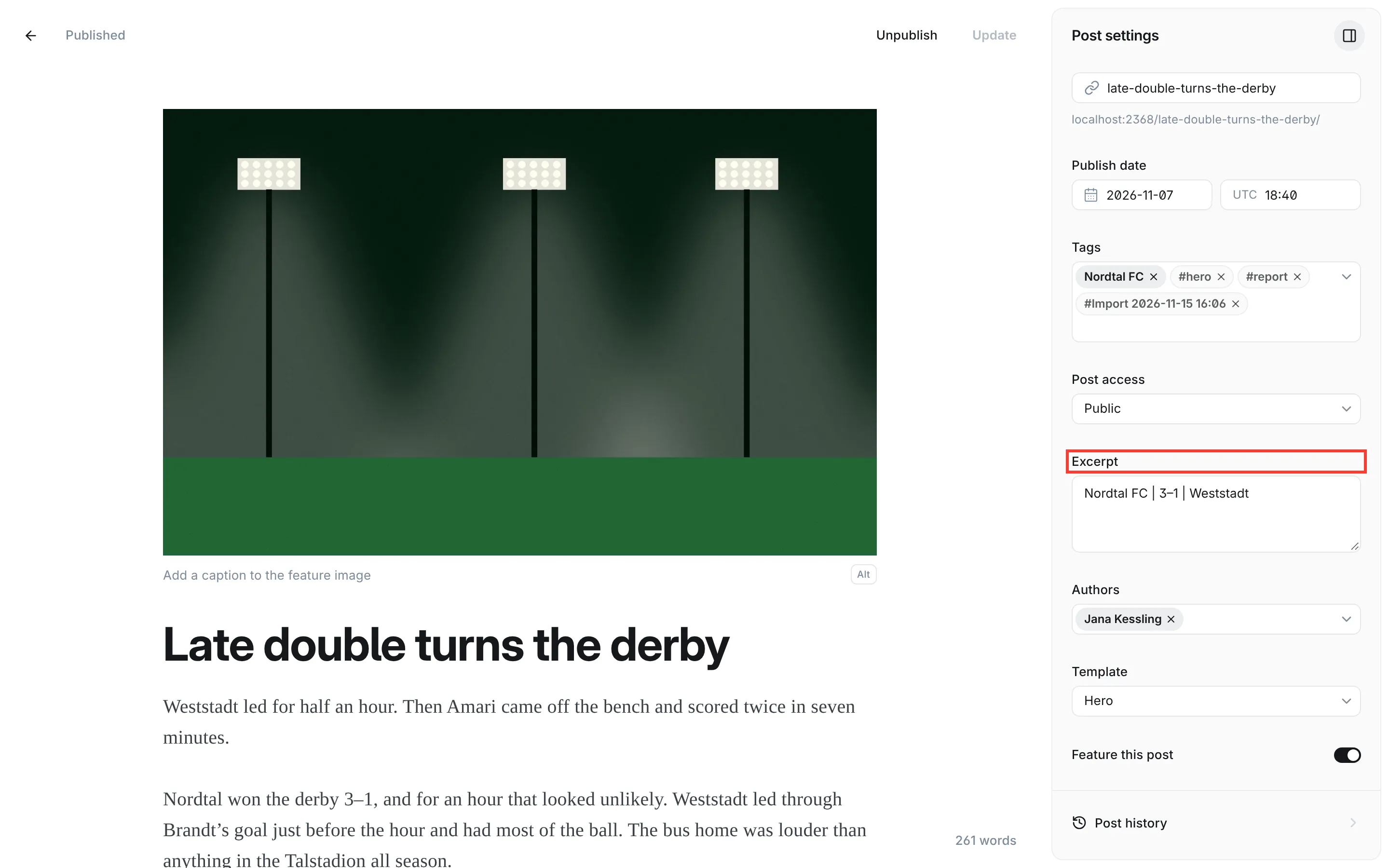
The newest report then leads the home page on the bright board, with the score and the first lines of its text, and its own page opens with the same board. In lists, it shows a W, D or L next to the score, once your club name is set.
If the theme can't read the score line (a missing bar, one team, four parts), it shows the report's title on the board until you fix the excerpt.
Details of the game
Scorers, quarters, a line score, ratings or every rubber of a team match go into the report as tables. Ghost has no table card, so add a Markdown card (type / on an empty line and choose Markdown) and write the table in it:
| Min | Goal | Score |
|---|---|---|
| 23' | Kessler | 1–0 |
| 57' | Brandt | 1–1 |
| 81' | Amari | 2–1 |
The theme sets every table in the scoreboard style. A wide table scrolls sideways inside the column on phones, so the page itself never does. An HTML card works as well, if you prefer writing <table> yourself.
Leaders (basketball)
With the Basketball preset, the home page shows the leaders of the last game as three tiles. Add a heading Leaders to the recap and a table right below it with the columns Player, Value and Stat:
## Leaders

| Player | Value | Stat |
|---|---|---|
| Okoro | 31 | points |
| Lindqvist | 11 | assists |
| Baptiste | 14 | rebounds |
The heading has to read exactly "Leaders", also on a site in another language, because the theme finds the table by it. Without that table the tiles are left out.
Previews
A preview is a post with the internal tag #preview and a fixture line in the excerpt. As on a report, the team comes first in Tags, before #preview:
Talheim 08 | Sat 14 Nov 15:30 | Away
Opponent first, then the date and time, then where the game is: Home, Away or the name of the ground, as you want readers to see it. For the countdown, the theme reads the day and the month from the middle part, so the date needs a day number followed by the month, shortened or written out, in English, German, Spanish, French or Italian (14 Nov, 14. Dez, 14 dic). The weekday and the time are shown as you type them.
The newest preview becomes the next match on the home page, with "8 days", "Tomorrow" or "Today" beside it. It stays until a report is published after it, or until the day of the game is over: a match that has been played is no longer announced, even if no report follows. The preview post itself stays as it is. With the Basketball preset, the home page also shows the preview before it if that game hasn't been played yet, so two games appear.
Probable starters (baseball)
With the Baseball preset, the next game on the home page can list the probable starters. Add a heading Probable starters to the preview with a table right below it. As with Leaders, the heading has to read exactly like this.
Stories, newsletters and team pages
A post without #report or #preview is a story: an away-day diary, an interview, the season review. It appears in the latest posts and, if you mark it, in the featured strip (Feature this post in the post settings).
A newsletter issue that you also want on the site looks best with the Newsletter template: choose Newsletter under Template and add the internal tag #newsletter. The page then looks like the e-mail, without boards, with a signup block at the end, and lists show it as "Newsletter". This changes only the page on your site. The e-mail itself always comes from Ghost (see Newsletter design below).
Every public tag has a page at /tag/ followed by the tag's slug, for example /tag/nordtal-fc/. It shows the tag's name and description and, under "All posts", every post with that tag. Give a tag a description under Tags in Ghost Admin, and it appears under the name.
A tag that comes first on at least one report or preview counts as a team. Its page is labelled "Team" and shows the team's next match, taken from the newest preview that leads with the tag, as long as no report followed it and the day of the game isn't over. Every other tag is labelled "Topic" and shows no next match, so Away days or an opponent's name never announces a game.
Archive pages for all reports and all previews
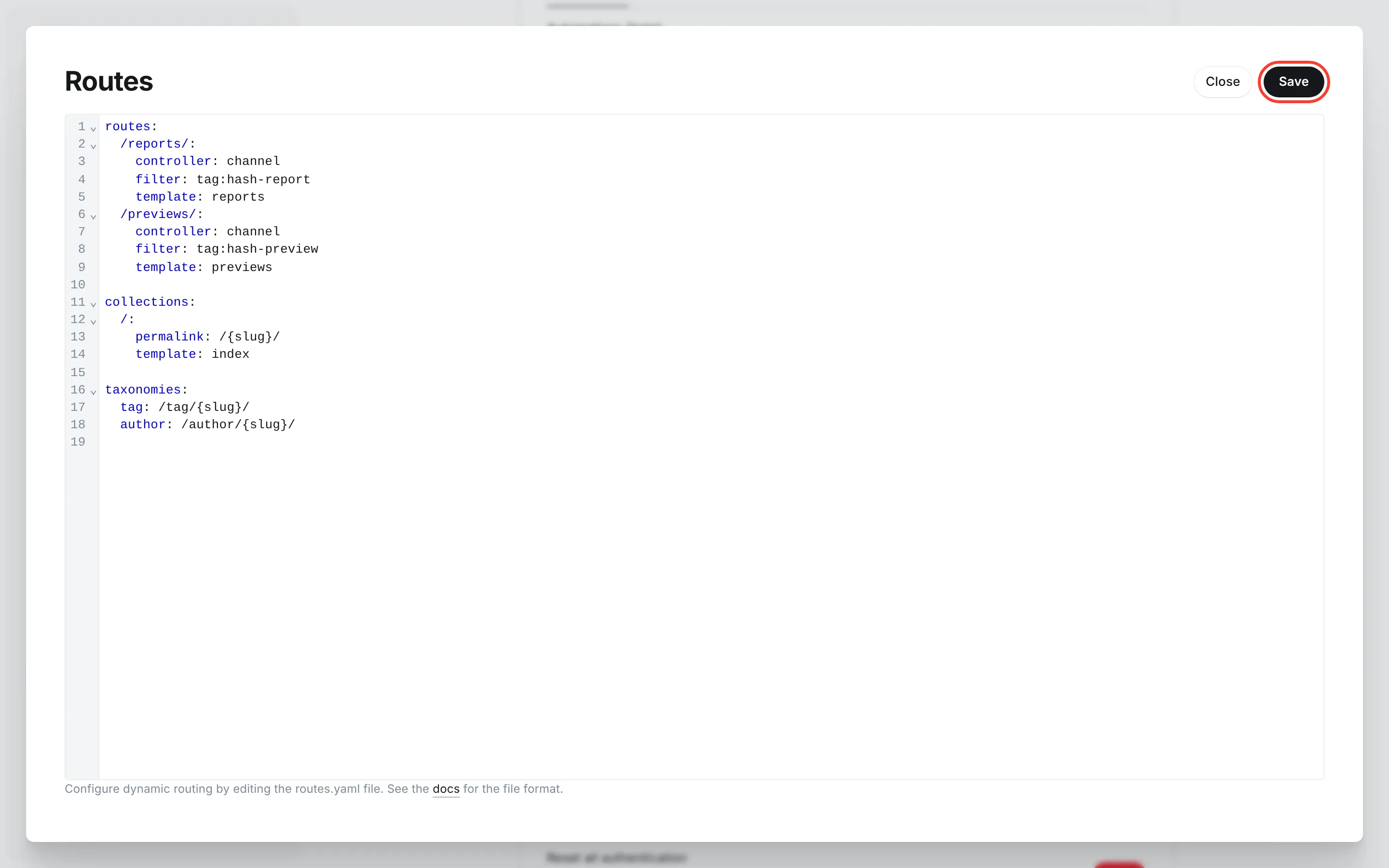
Ghost gives internal tags no archive page of their own, so Einsnull brings two that you switch on with Ghost's routes: /reports/ lists every report with its score, /previews/ every preview with its date, newest first, twelve to a page.
- Go to Settings → Advanced → Labs and click Open.
- On the tab Beta features, find Routes and click Edit.
- Below the line
routes:, add these lines, indented by two spaces as shown, and leave the rest as it is:
routes:
  /reports/:
    controller: channel
    filter: tag:hash-report
    template: reports
  /previews/:
    controller: channel
    filter: tag:hash-preview
    template: previews
- Click Save. Ghost checks the file and reports an error if the indentation is off.
Both pages also have a feed for feed readers, at /reports/rss/ and /previews/rss/. Add the pages to your navigation as "Reports" and "Previews". Their headings follow your site's language, for example "Alle Berichte" and "Alle Vorschauen" in German. The addresses stay as you set them in the routes, so you can name them /berichte/ and /vorschauen/ instead.
Post layouts
Choose how a post opens under Template in the post settings:
| Template | How the post opens | Good for |
|---|---|---|
| Default | the score or fixture board, the feature image across the page, then the title | most reports and previews |
| Hero | the title on a large photo, with the score as a plate on reports | a derby, a final, the big story of the week |
| Split | the score and title on your club colour, the photo beside them | reports with a strong portrait photo |
| Wide | like Default, but images, galleries, tables and videos in the text use a wider column | photo reports, long tables |
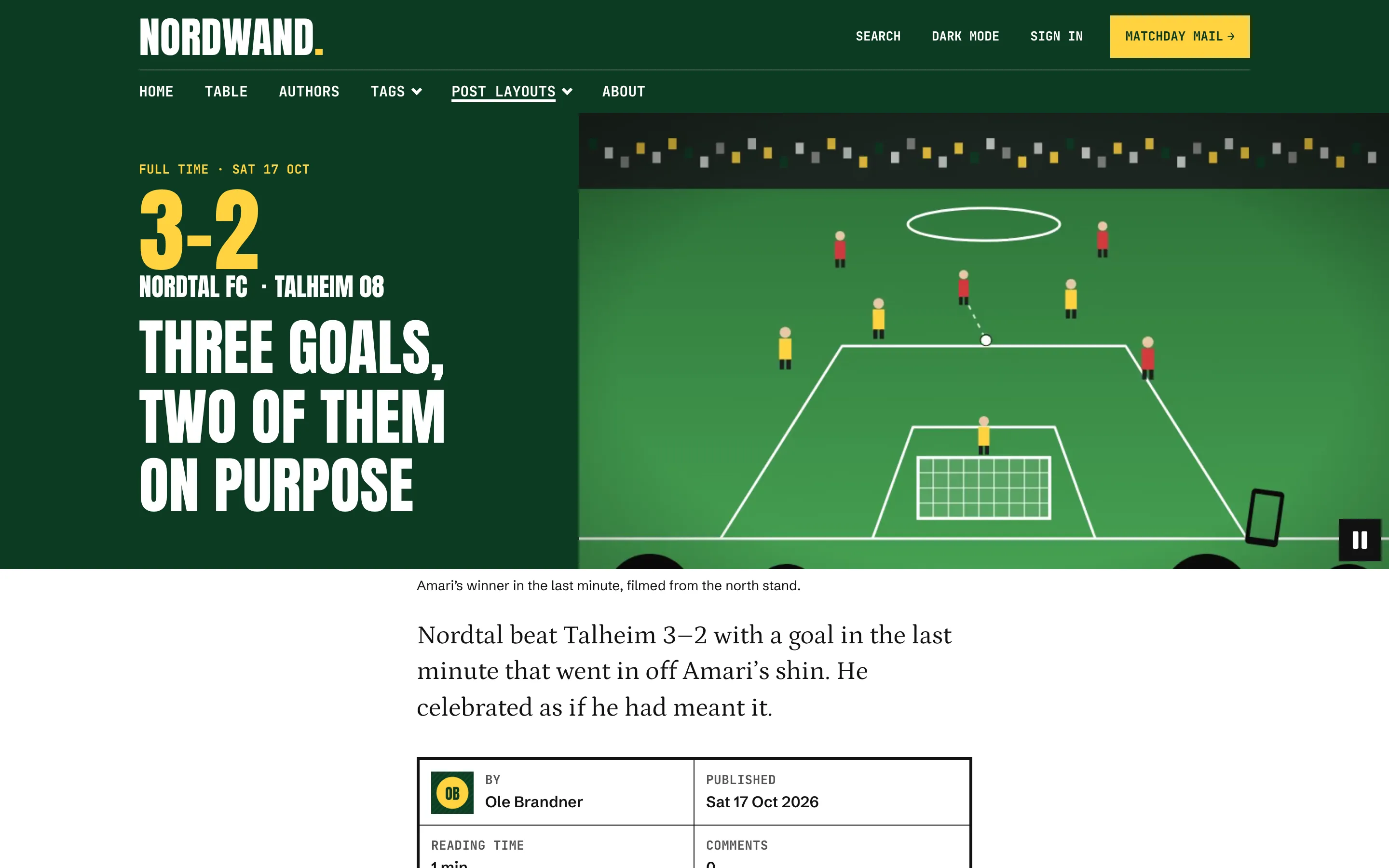
| Video Header | the score and title on your club colour, the post's first video beside them | a goal filmed from the stand, a rally, the walk-on |
A post without a feature image always opens with its title on a band in your club colour, whichever template you pick. The Video Header is the exception: it opens with the video.
Video
A video in the head of a post
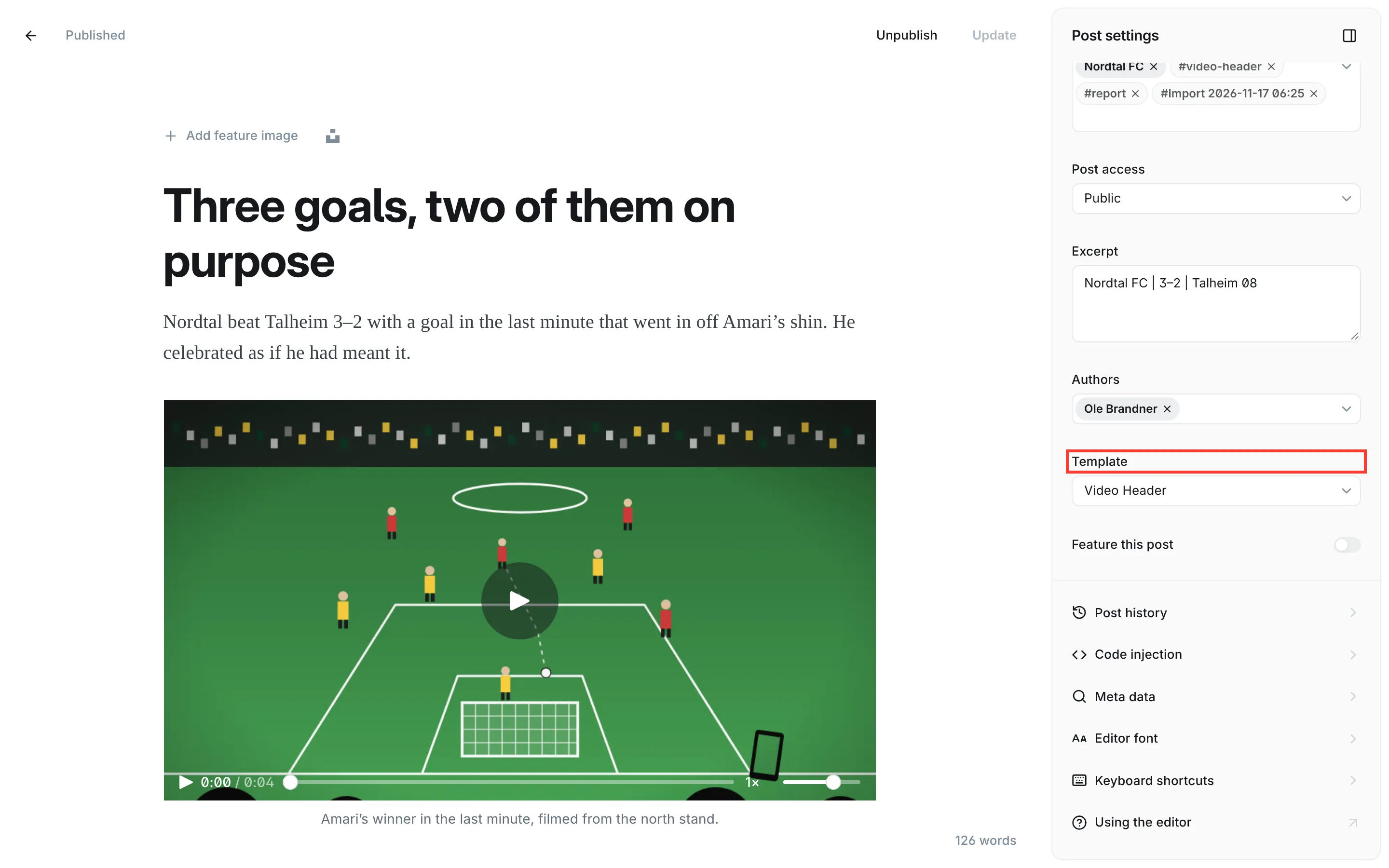
The Video Header template puts a video where the photo would be. On a phone the video comes first, then the score and the title.
- Add the video to the post: type
/videoon an empty line, choose Video and pick the file. - In the post settings, choose Video Header under Template. The post settings stay open or closed as you left them the last time.
- Publish or update the post.
The first video of the post moves into the head and no longer shows in the text. The video's caption appears under the head.
Keep the feature image. Lists, the home page, shared links and the newsletter show it, because they can't show a video. Readers also see it in the head of a post that has no video.
A video that plays on its own. Click the video in the editor, open its settings from the small toolbar above it and switch on Loop. It then starts on its own, without sound, and begins again when it ends. Readers get a button in its corner to pause it. For readers who have set their device to reduce motion, it waits until they press play.
Without Loop, the head shows the video with a play button and the controls: play, time, speed and sound.
A looping video starts to load with the page, so keep it to a few seconds and under 2 MB.
On a post for members only, a visitor who isn't signed in sees the part above the public preview line. If the video is below that line, they see the feature image in the head. Put the video above the line if everyone should see it.
A video in the text
A video card in the text looks the same in every width Ghost offers, and Loop works there too.
A video from YouTube or Vimeo
The two ways differ in when the provider's player loads.
- As a bookmark. Type
/bookmarkon an empty line, choose Bookmark and paste the link to the video. Einsnull turns it into a board with the button "Play video from YouTube". Nothing loads from YouTube or Vimeo until the reader presses it. - As an embed. Paste the link on an empty line. Ghost embeds the provider's player, which loads from the provider as soon as the page opens. Einsnull shows it at the full width of the text column.
If you tell your readers that your site loads nothing from other companies, use the bookmark or upload the video to Ghost (see Self-hosting).
Images and galleries
Readers click an image or a gallery photo in a post to see it large. In a gallery, the arrows, the arrow keys or a swipe move on to the next photo of that gallery. Escape or Close goes back to the post. The caption you typed under the image shows below it.
An image you linked in the editor (the link field of the image card) keeps its link and doesn't open large.
Pages and page variants
Pages use the same templates, plus two of their own:
- Default, Hero, Split, Wide and Video Header work on pages as on posts, without the score and match details.
- Landing shows the title and excerpt plainly, without a board or feature image, and then your content. Good for a club portrait or a page you build from cards.
- Standings turns the page into your league table (below).
Every page template respects Show title and feature image in the page settings. Switch it off, and the page starts with your content.
The standings page
- Create a page, for example "Table", and give it the URL
table. - Choose Standings under Template.
- Add a Markdown card with your league table. Text above and below the table is shown as normal text.
| # | Team | P | W | D | L | Goals | Pts | Form |
|---|---|---|---|---|---|---|---|---|
| 1 | Kirchberg | 12 | 9 | 3 | 0 | 31:16 | 30 | WWDWW |
| 4 | Nordtal FC | 12 | 7 | 3 | 2 | 24:17 | 24 | LWDWW |
The table takes the full width of the page and the row that contains your club name is highlighted. A column of W, D and L letters, such as LWDWW, becomes a row of result squares, oldest on the left. On phones the table shows every column up to the points, and the result squares appear on wider screens. Under the title, the page shows when you last saved it, so readers know how current the table is. With the Table tennis preset, a second table on the same page (player records) is set the same way.
Update the table by editing the page after each matchday. Then add the page to your navigation.
Overview pages for authors and tags
Einsnull has a page that lists all authors and one that lists all tags with their number of posts. Ghost shows them when a page has the matching URL:
- Create a page with the title "Authors" and set its URL to
authors. Publish it. - Create a page with the title "Tags" and set its URL to
tags. Publish it.
Leave these pages empty, because the theme fills them. Internal tags such as #report never appear in the list.
Newsletter design
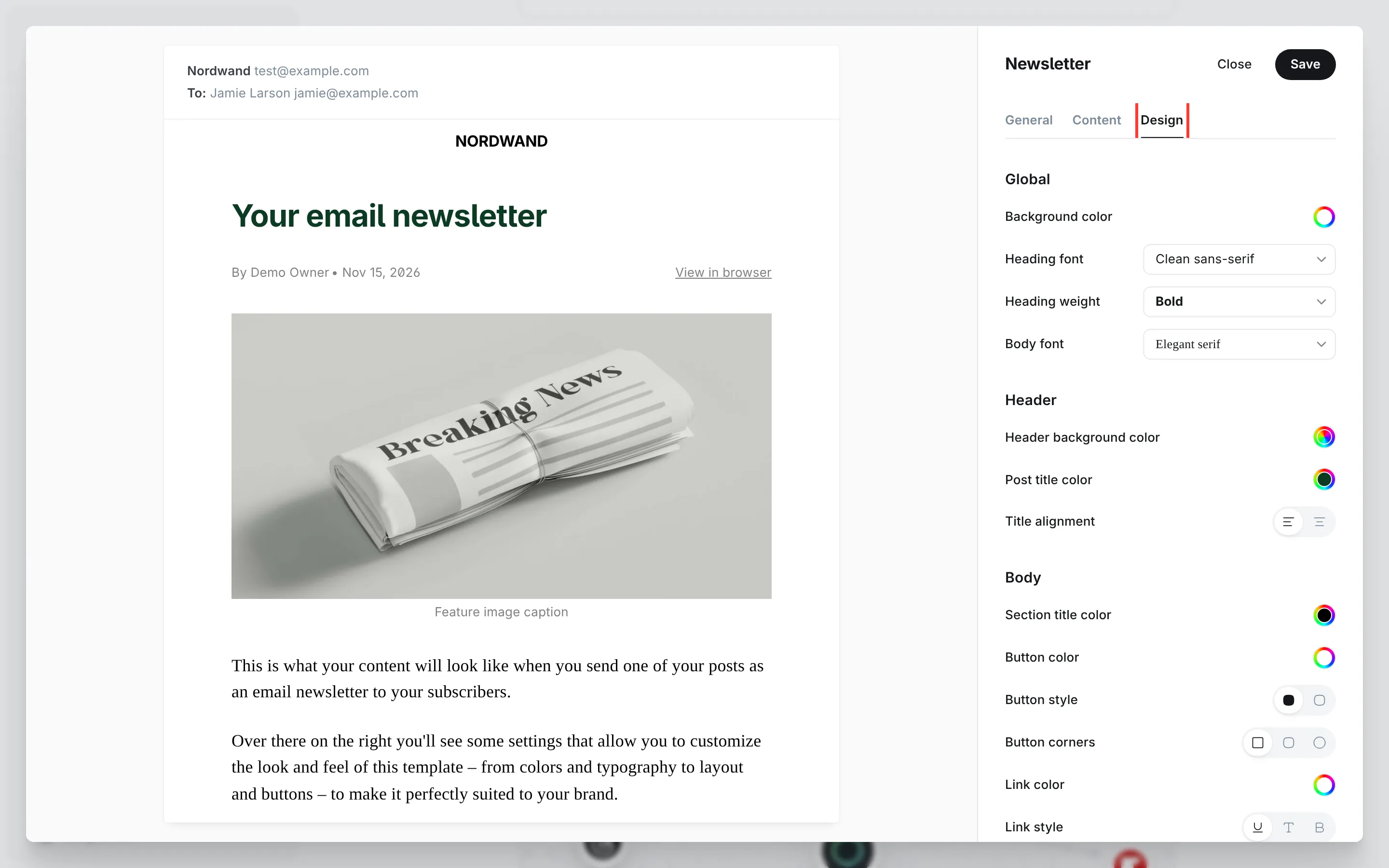
Ghost builds the newsletter e-mails itself, and a theme can't change them. These values make the e-mail match Einsnull as closely as Ghost allows. Go to Settings → Newsletters, click Edit next to your newsletter, and set them on two tabs.
On the Content tab:
| Setting | Value |
|---|---|
| Header image | none, or a club banner of 1200 × 300 pixels |
| Publication title | on |
| Feature image | on |
| Add a link to your comments | on (only shown when comments are on) |
| Share your latest posts | on |
On the Design tab:
| Setting | Value |
|---|---|
| Background color | white |
| Heading font | Clean sans-serif |
| Body font | Elegant serif |
| Post title color | the board colour of your preset or your own dark colour |
| Title alignment | left |
| Button corners | the square one, the first of the three |
Click Save.
The display font of the boards can't be used in e-mails, which is why the title uses Ghost's sans-serif.